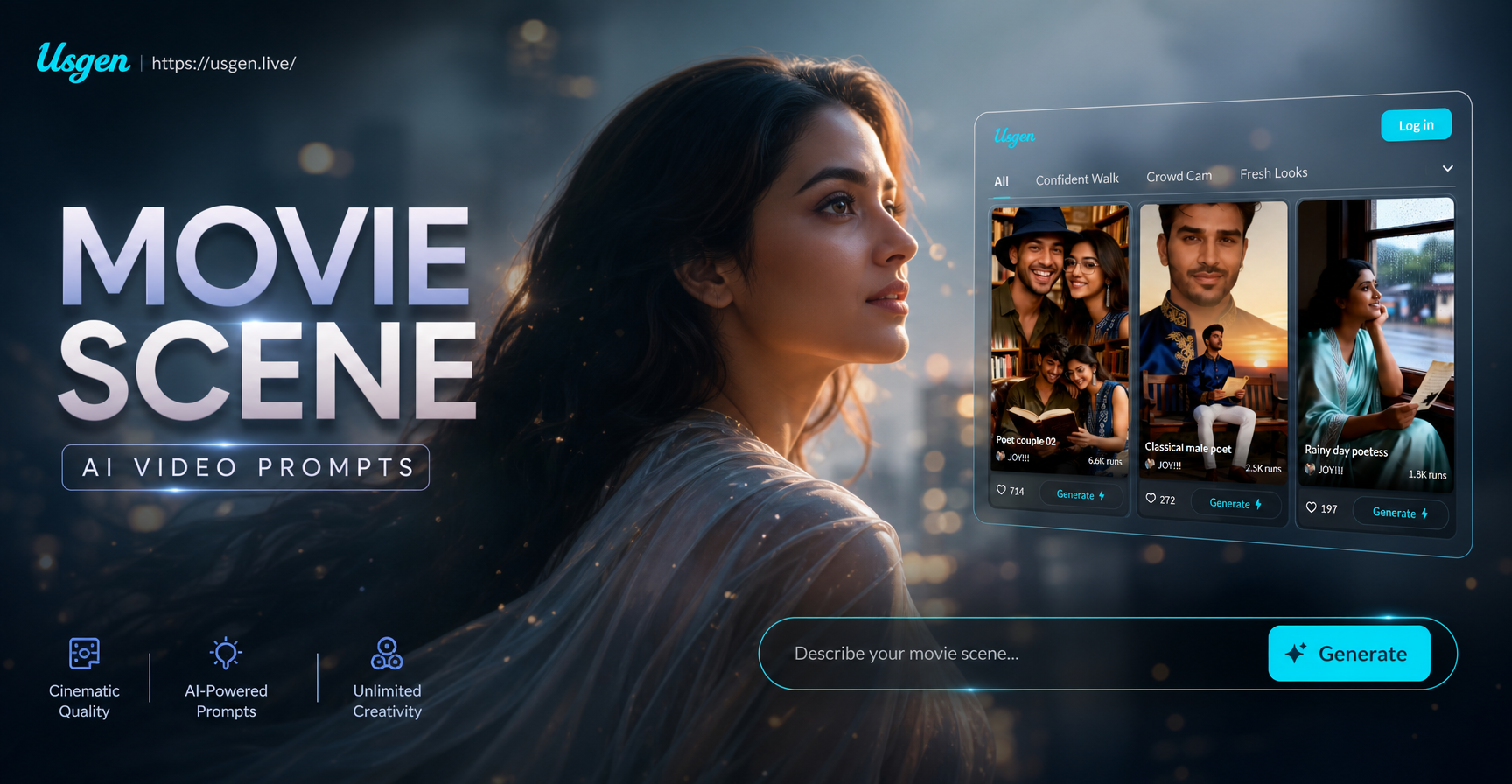
Why Movie Scene AI Video Prompts Are Taking Over Social Media
Scroll through Instagram Reels, TikTok, or YouTube Shorts right now and you will see a flood of cinematic clips. Scenes with dramatic lighting, emotional eye contact, and sweeping camera movements. Many of these are not filmed with expensive cameras. They are generated with AI video tools and powered by carefully crafted movie scene AI video prompts. Users are turning casual photos and simple text descriptions into full cinematic sequences. The appeal is obvious. You do not need a crew, a location permit, or a blockbuster budget. You just need to know how to describe what you want. The AI engine interprets your words and renders the visual scene accordingly. This article breaks down exactly how to write those prompts and why the usgen app is an excellent tool for this creative work.
What Are Movie Scene AI Video Prompts?
Movie scene AI video prompts are descriptive text instructions that guide an AI model to generate video content that looks like a scene from a film. These prompts go beyond basic descriptions like "a man walking." They include details about camera angles, lighting styles, color grading, character emotions, and environmental atmosphere. A good prompt combines subject, action, environment, and visual style. For example, instead of saying "a woman in a forest," you say "cinematic close up of a woman in a rain soaked forest, shallow depth of field, cool blue color grade, soft mist, film grain, 35mm lens." The AI uses these specific terms to simulate a movie frame. The more precise you are with your language, the more control you have over the final render. Writing these prompts is like being a director and a screenwriter at the same time.
How to Write Effective Movie Scene AI Video Prompts
There is a simple formula you can follow to create high quality movie scene AI video prompts. Start with the shot type. Tell the AI if you want a close up, a medium shot, an aerial view, or a tracking shot. Then describe the subject and their action. Add the environment or setting. Finally, layer in cinematic details like lighting, color tone, and lens type. Here is a breakdown of the key elements.
Shot Type and Camera Movement
The shot type sets the stage. A close up focuses on facial expressions and emotional nuance. A wide shot establishes the environment and scale. A low angle shot makes a character look powerful. A POV shot puts the viewer inside the scene. You can also specify camera movement. Terms like "slow zoom," "dolly in," "pan left," or "handheld shot" tell the AI how to animate the camera. Combining these gives the scene a professional rhythm. For example, "slow dolly in on a close up of a detective staring at a glowing street lamp." The camera movement itself tells a story. Use movement that matches the emotional tone. A frantic handheld shot works for action. A slow zoom works for suspense or romance.
Lighting and Color Grading
Lighting transforms a flat image into a cinematic frame. Movie scenes use specific lighting styles to evoke emotion. You can reference golden hour light for warm nostalgic scenes. Use neon glow for cyberpunk or thriller aesthetics. Use harsh shadows for film noir drama. Soft diffused light works well for romantic or dreamy sequences. Color grading is equally important. Terms like "teal and orange," "moody desaturated," "vibrant saturated," or "black and white" tell the AI which color palette to apply. Many movie scene AI video prompts include both lighting and color grading for maximum impact. For example, "moody film noir scene, harsh shadows, high contrast black and white, venetian blinds casting light patterns on the wall." The combination creates an unmistakable cinematic look.
Film References and Genres
One of the easiest ways to get great results is to reference a film genre or a specific director's style. AI models understand broad genre terms very well. Prompt for "sci fi epic like Blade Runner" or "rustic western like a Coen Brothers film." You can also reference cinematography styles. Terms like "Wes Anderson symmetrical pastel," "Christopher Nolan practical effects," or "Quentin Tarantino pulpy retro" provide a huge amount of visual direction in just a few words. Genre references help the AI make smart decisions about composition, color, and set design without you having to list every single detail. Use these references as a shortcut. Just be aware that you should still combine them with specific shot descriptions for the best result.
Genre Specific Movie Scene AI Video Prompts to Try
Now that you understand the building blocks, here are complete examples you can copy, paste, and modify. These prompts are ready to use in the usgen app. Just plug them into the text to video feature and see what happens.
Sci-Fi and Cyberpunk
Sci-fi scenes rely on futuristic details and atmospheric lighting. Use terms like "neon lit," "holographic displays," "dystopian cityscape," and "spaceship interior." A strong prompt might be: "Cinematic wide shot of a lone bounty hunter walking through a rain drenched cyberpunk alley, neon signs reflecting on the wet pavement, steam rising from vents, teal and magenta color grade, slow motion, 50mm anamorphic lens." The specific mention of the lens type and color grade instantly pushes the video into a movie trailer aesthetic.
Romantic Drama
Romantic scenes benefit from soft light and intimate framing. Describe warm colors and gentle movement. A good prompt is: "Close up of two lovers sitting on a park bench at golden hour, lens flare from the setting sun, soft warm skin tones, gentle breeze moving their hair, shallow depth of field, nostalgic film grain, romantic atmosphere." This prompt directs the AI to focus on emotional expression and warm lighting. The result should look like a scene from a high budget romantic drama.
Action and Thriller
Action scenes need dynamic camera movement and high energy. Use terms like "explosion," "car chase," "bullet time," or "fast paced editing." For example: "Handheld camera follows a man sprinting through a crowded market, motion blur, dust flying, dramatic low angle shot, intense facial expression, gritty color grade, 24 frames per second." The mention of frame rate and handheld movement gives the video a realistic, urgent feel. Action prompts work best when you emphasize speed and chaotic movement.
Fantasy and Epic
Fantasy scenes require sweeping landscapes and magical elements. Describe impossible environments like floating islands, ancient castles, or glowing forests. Try: "Aerial drone shot of a massive medieval castle on a cliff overlooking an ocean of clouds, golden morning light, epic scale, cinematic composition, volumetric fog, orchestral atmosphere." The drone shot description tells the AI to generate a moving aerial perspective. The scale words like "massive" and "epic" influence the grandeur of the scene.
Why the usgen App Excels for Movie Scene Generation
While many AI video tools require complex interfaces, usgen simplifies the entire process into a mobile experience. You can open the app, select the text to video generator, type your movie scene AI video prompt, and tap generate. There is no need for complicated prompt engineering. The app is built with a massive library of style filters and templates. You can combine your prompt with a cinematic filter to enhance the final result. For example, you might write a prompt for a noir detective scene and then select a film grain filter that matches the mood. The app also supports image to video. This means you can upload a photo of a friend, a pet, or a location, and then use a movie scene prompt to animate it into a film like sequence. The multi-person processing feature is particularly impressive. Upload a group photo and the AI can generate a video where multiple people interact naturally inside your chosen movie scene. This opens up incredible creative possibilities for short films, social media content, and even personalized movie trailers.
Common Mistakes to Avoid
Even with a great prompt, there are a few mistakes that can ruin your results. First, do not write vague descriptions. "A cool video of a guy" is too broad. The AI will produce something generic. Be specific about the shot type. Second, do not overload the prompt with contradictory instructions. Asking for both "bright sunny day" and "dark moody shadows" will confuse the model. Choose one clear visual direction. Third, do not forget the audio. While usgen focuses on visual generation, you can still edit your video later to add music. Think about what kind of soundtrack would match your scene. Fourth, do not settle for the first output. Generate multiple versions with slightly different prompts. Change one word at a time. The app makes it easy to iterate quickly. Perhaps change "wide shot" to "close up" or "sunset" to "midnight." Small changes create big differences in AI video generation.
Advanced Techniques for More Cinematic Results
Once you master the basic formula, you can layer advanced techniques into your movie scene AI video prompts. Reference specific lenses and film stocks. Terms like "anamorphic lens flare," "70mm IMAX," or "Kodak Portra film stock" give the AI texture and character. Use emotional cues. Instead of just describing what is happening, tell the AI how it should feel. Write "a melancholic mood, a sense of loss, quiet desperation" into the prompt. The AI translates these emotional cues into facial expressions and pacing. You can also prompt for specific camera behaviors. Try "the camera slowly tilts up to reveal a towering monster" or "the camera crashes through a glass window." This level of direction reads like an actual shot list from a film production. The more you write prompts, the more you develop your own directorial voice. The usgen app is the perfect practice ground because it allows unlimited experimentation on mobile.
Conclusion
Movie scene AI video prompts are the key to unlocking professional looking video content from your phone. By learning to describe shot types, lighting, color grading, and camera movement, you can direct AI to generate nearly any scene you imagine. Whether you want a cyberpunk chase, a romantic picnic, or a fantasy battle, the right prompt makes it possible. The usgen app puts this creative power in your pocket. You do not need a film degree or expensive equipment. You just need a clear vision and the words to describe it. Download the app, try the examples in this article, and start directing your own AI movie scenes today.